Context and Tools
The context window determines what Claude can see — your conversation history, files it has read, tool outputs, and system instructions. Understanding it helps you work effectively in longer sessions.
The latest Claude models support up to 1 million tokens of context. That is enormous — enough to hold large codebases, lengthy conversations, and extensive tool output simultaneously. The context is filled by:
- System prompt and tool definitions — fixed overhead from Claude Code's built-in instructions and configured MCP servers
- CLAUDE.md files and rules — your project instructions, loaded at session start
- Conversation history — everything you and Claude have said this session
- File contents — files Claude has read into context
- Command outputs — terminal output from bash, test runs, builds
Run /context to see how your context window is being used:
/contextObserve: You see a breakdown of what is consuming your context window. Here is what each category means:
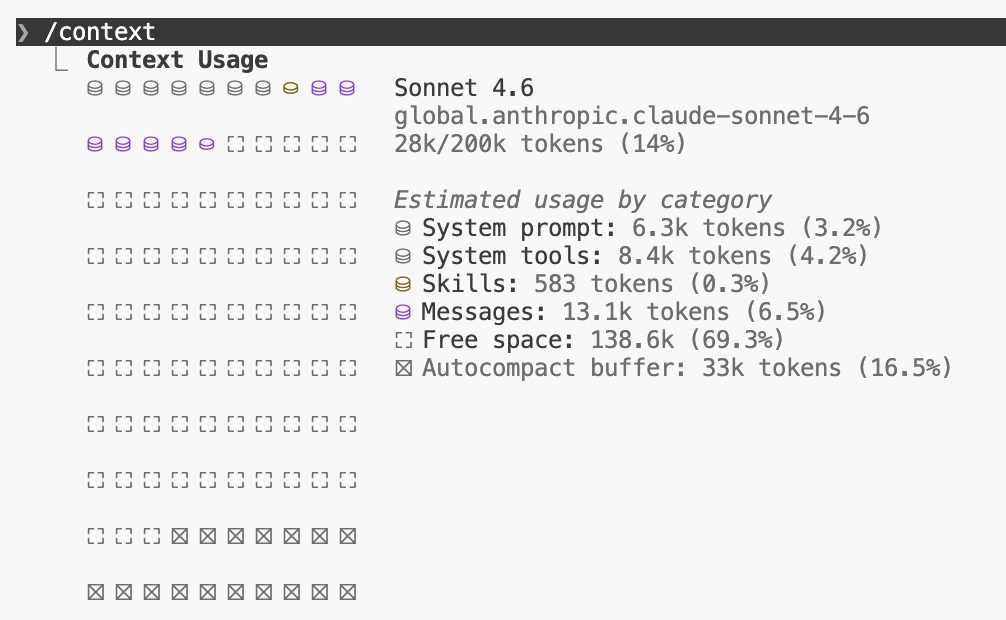
| Category | What it is |
|---|---|
| System prompt | Claude Code's built-in instructions — always present, you cannot change this |
| System tools | Definitions for the 8 built-in tools (Read, Edit, Bash, etc.) so Claude knows how to use them |
| Skills | Reusable workflow templates — you will create these later in the Extensions section |
| Messages | Your conversation so far — every prompt you typed and every response Claude gave |
| Free space | Available room for more conversation, file reads, and tool output |
| Autocompact buffer | Reserved space — when context fills up, Claude automatically compresses older messages to make room |
Right now, most of your context is free space. As you work — reading files, getting responses, running commands — the Messages category will grow. The key number to watch is the total percentage at the top.
Even with 1M tokens, very long sessions eventually accumulate enough history that older context gets compressed. Claude Code handles this automatically through auto-compaction — summarizing older conversation turns to make room for new ones. You can also compact manually:
/compact— summarize and compress the conversation so far (use between tasks, not mid-task)/clear— reset the conversation completely/context— check current usage
For most workshop exercises, context management is not a concern — sessions are short and focused. It becomes important in real-world use when you have long, multi-hour development sessions. The key habit: compact at logical breakpoints between tasks, not in the middle of one.