TaskFlow Setup
Every workshop in this curriculum uses the same hands-on project. Let's get it running.
Your VS Code explorer already shows the /workshop folder with taskflow/ inside it. Open a terminal and install dependencies:
1
2
cd /workshop/taskflow
npm install1
npm run devThe server listens on port 3000 and auto-restarts whenever a source file changes — essential for the phases ahead, where Claude writes new code and you need the browser to pick it up immediately. Because your VS Code is running remotely on an EC2 instance, http://localhost:3000 won't work in your browser directly — you need the forwarded URL.
When the server starts, VS Code pops up a toast that says "Your application running on port 3000 is available." Click Open in Browser. If you miss the toast, open the Ports panel (View → Ports, or Ctrl+Shift+P → "Focus on Ports View"), find port 3000, and click the globe icon. The URL will look like https://<cloudfront-domain>/code/proxy/3000/.
You should see a Kanban board with three columns — To Do, In Progress, and Done — populated with sample tasks. Each card shows a title, description, priority badge, tags, and an assignee.
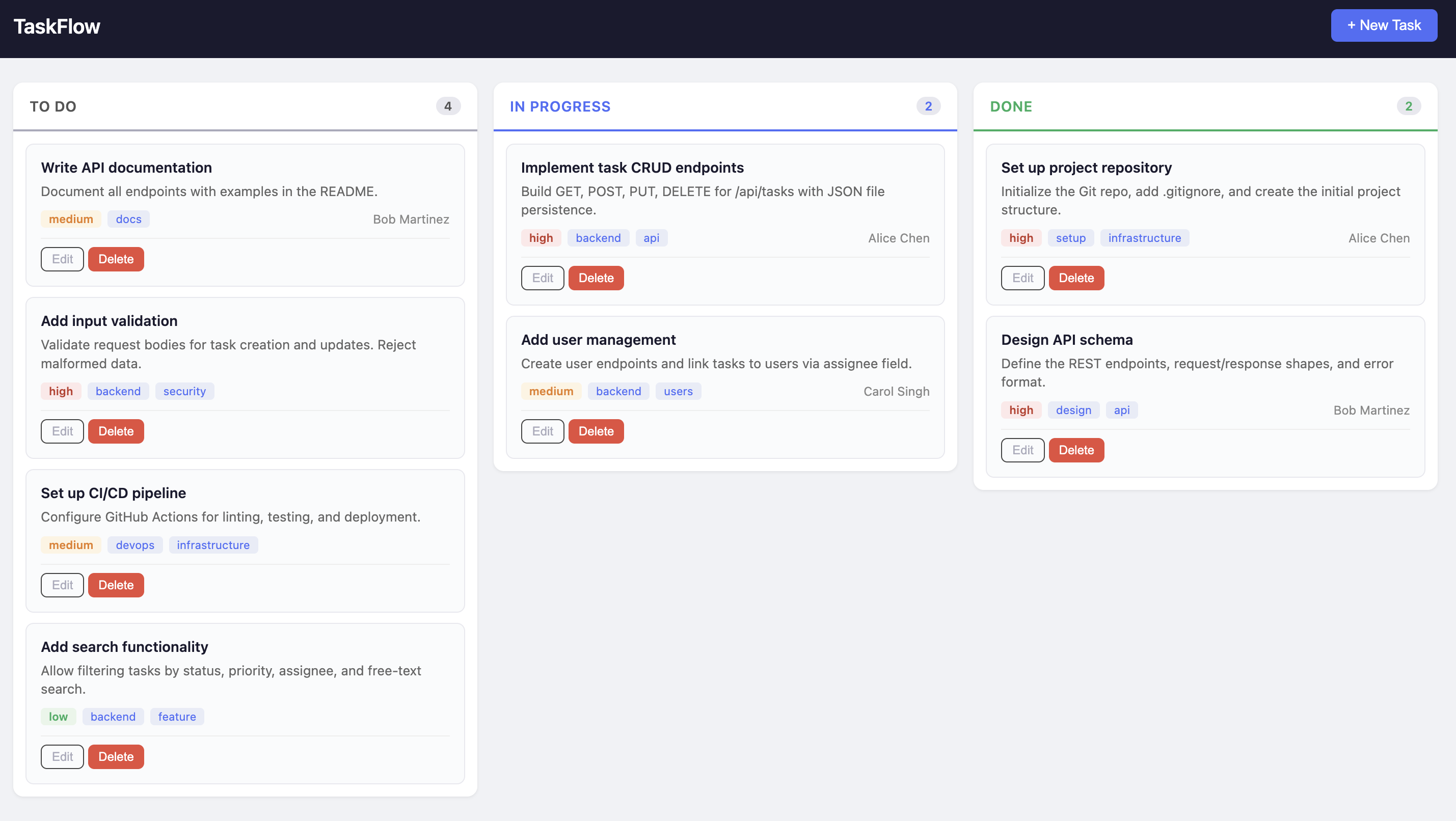
Try clicking on a task to view its details. This is v1 — a basic kanban board with a REST API. No comments, no validation, no tests.
This is the application as you first encounter it. Each workshop adds specific capabilities — the Fundamentals section adds configuration, Phase 3 adds tests, Phase 4 adds the autonomous pipeline. The starting point is intentionally bare.
Leave the server running — you will need it for later exercises.
The server is occupying your current terminal. You need a second terminal to run Claude Code and other commands. In VS Code, click the + button in the terminal panel to open a new terminal tab. Your first terminal (running the server) stays active in the background — you can switch between them by clicking the terminal tabs.
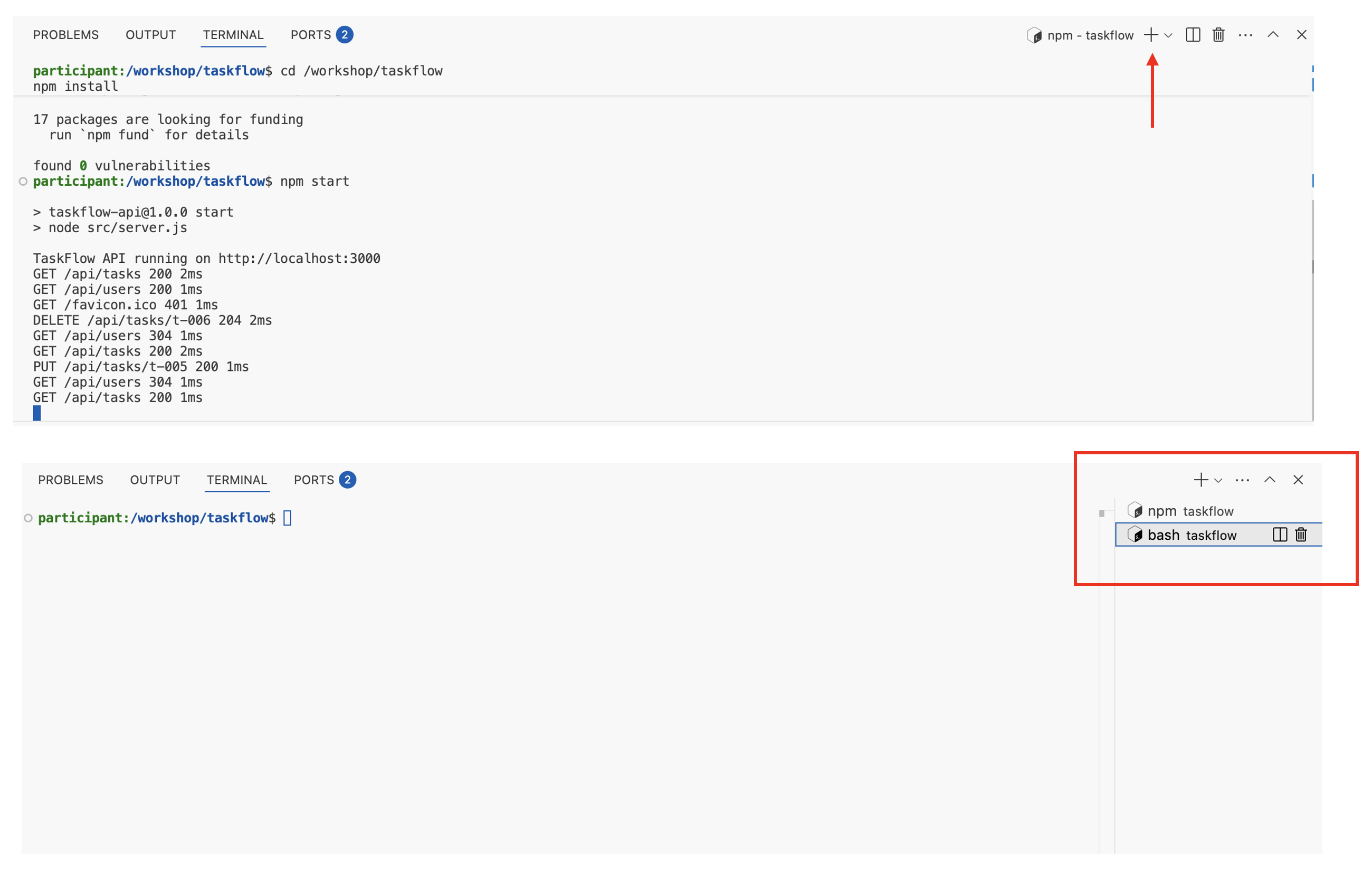
If you need to reset to a clean state at any point, copy from the clean snapshot:
1
rm -rf /workshop/taskflow && cp -R /workshop/snapshots/clean /workshop/taskflow && cd /workshop/taskflow && npm install